
AI summary

AI summary

AI summary

This SubFlow Terminal guide shows how to create TradingView alerts for SubFlow Terminal signals. Alerts allow monitoring markets for key events without needing to watch charts constantly.

This SubFlow Terminal guide shows how to create TradingView alerts for SubFlow Terminal signals. Alerts allow monitoring markets for key events without needing to watch charts constantly.

This SubFlow Terminal guide shows how to create TradingView alerts for SubFlow Terminal signals. Alerts allow monitoring markets for key events without needing to watch charts constantly.

Creating alerts with SubFlow Terminal

Creating alerts with SubFlow Terminal

Creating alerts with SubFlow Terminal

Create alerts for SubFlow Terminal's volume events on TradingView

Create alerts for SubFlow Terminal's volume events on TradingView

Create alerts for SubFlow Terminal's volume events on TradingView

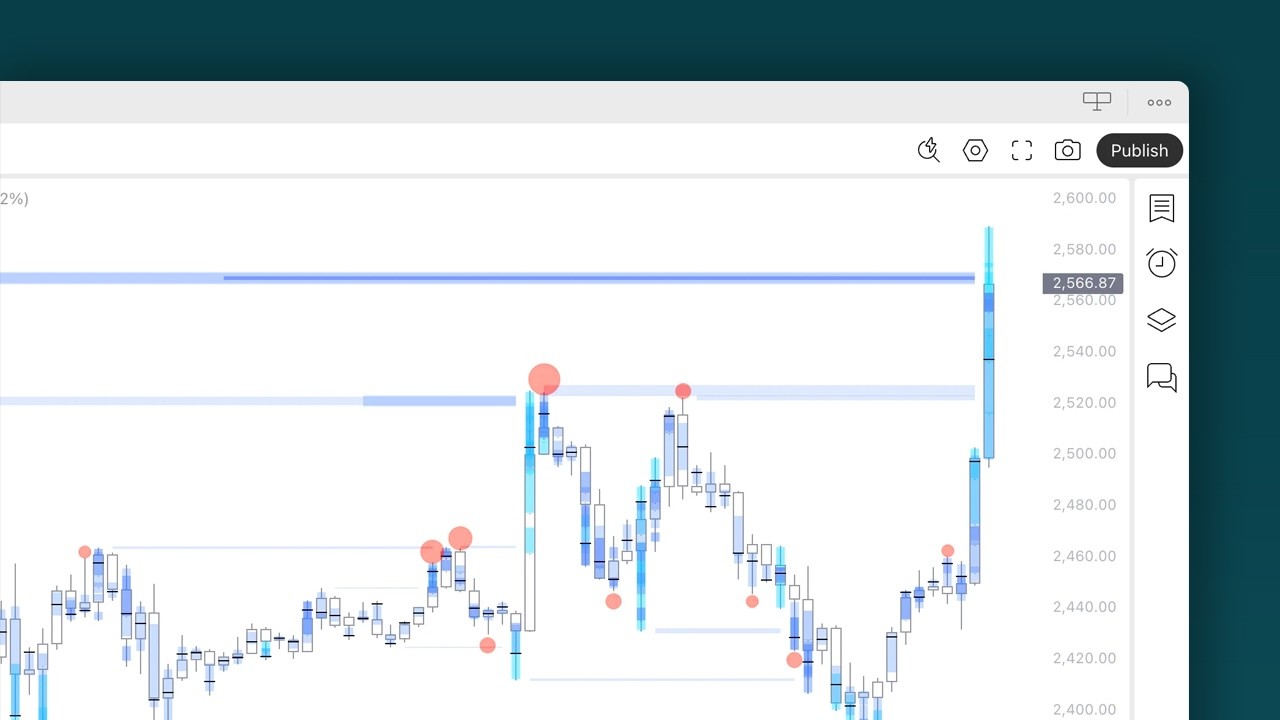
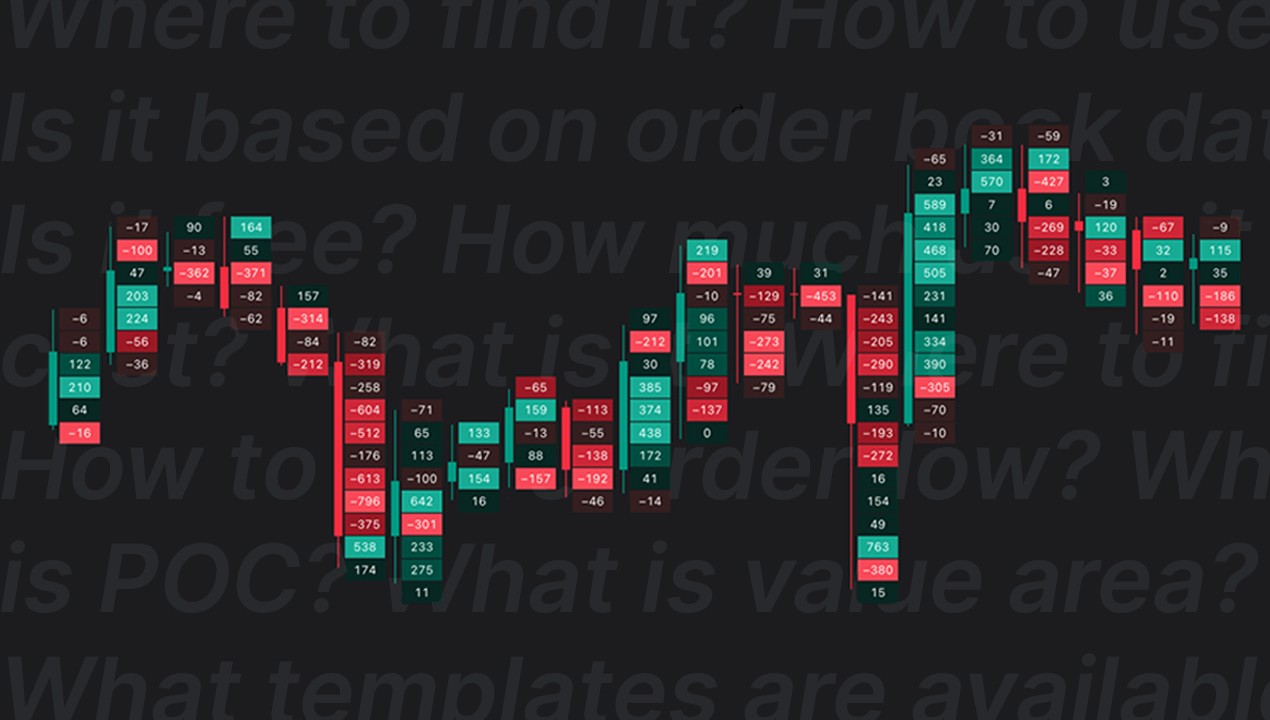
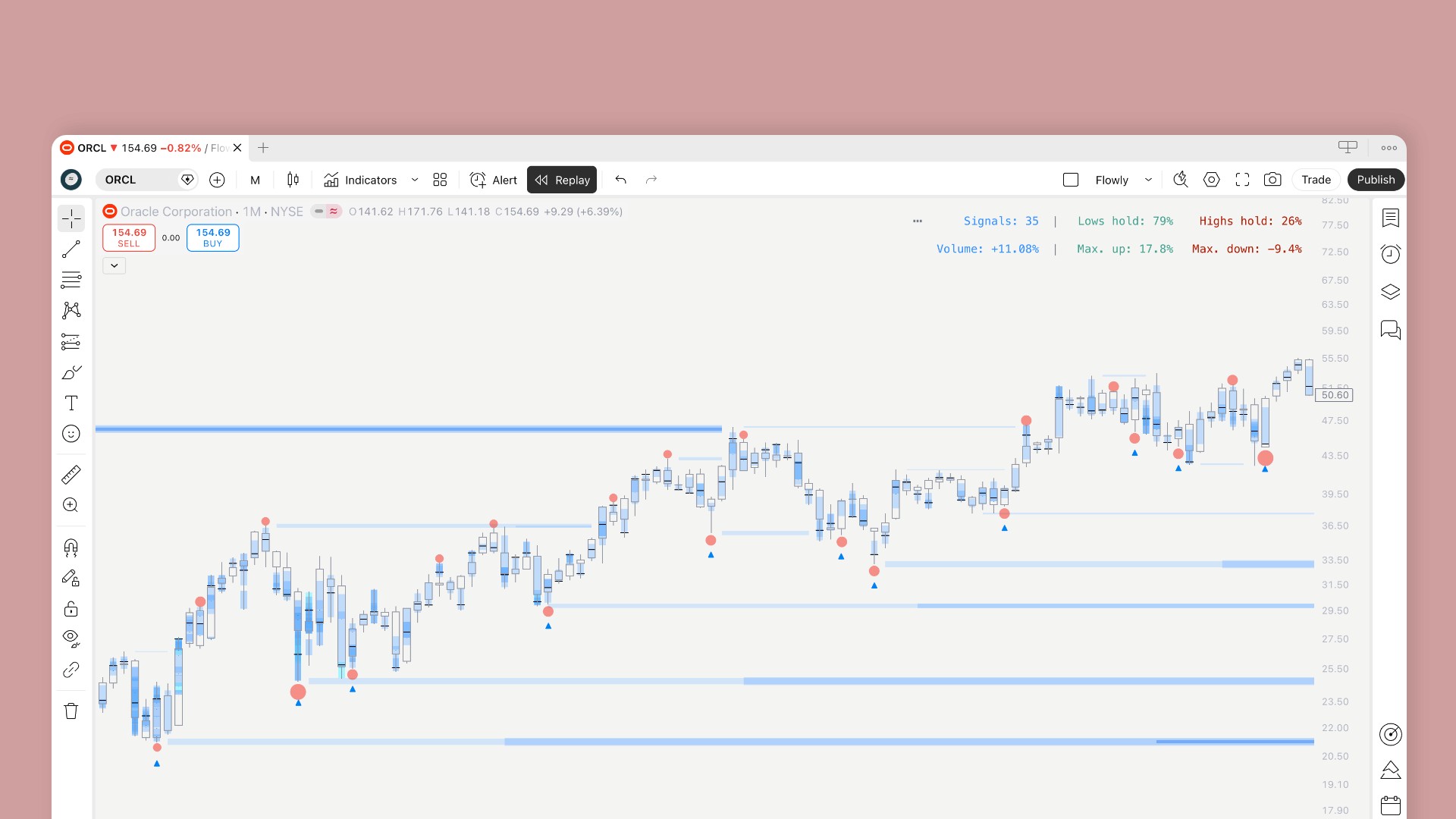
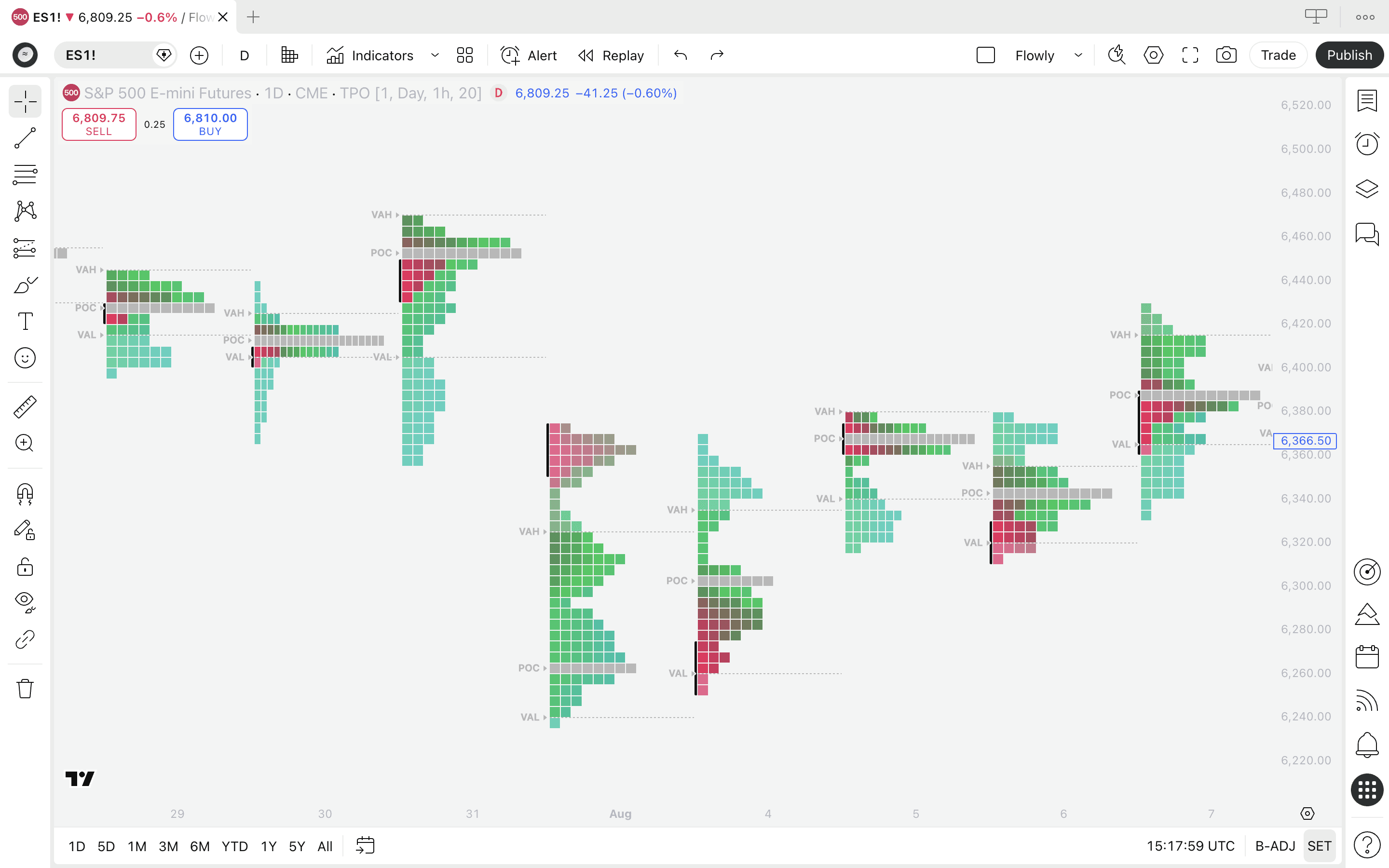
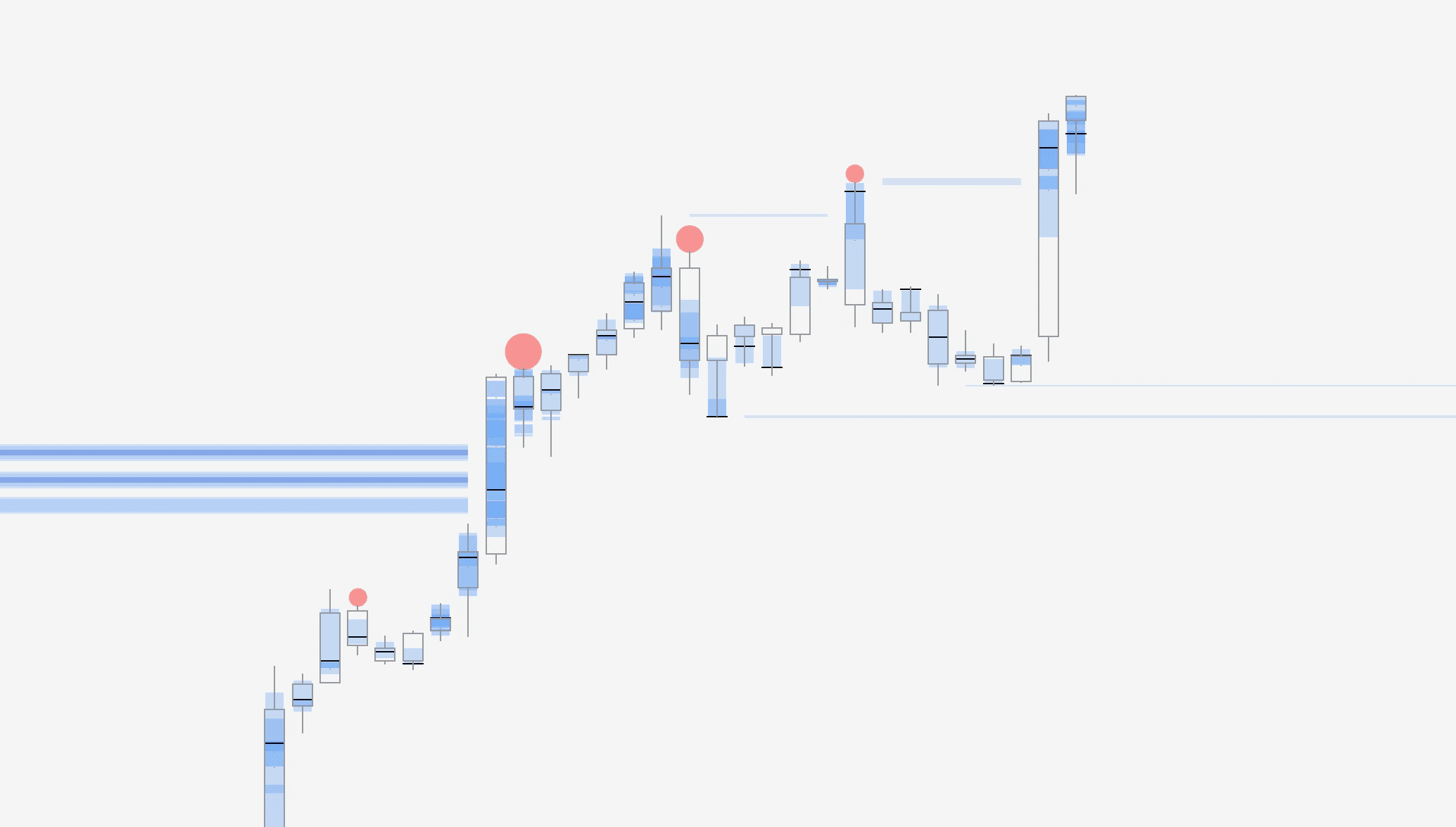
Main image for the guide "Creating alerts with SubFlow Terminal"

Flowly Team

Flowly Team

Jan 26, 2026

Jan 26, 2026

2 min read

2 min read

Share

Questions about SubFlow Terminal?

Questions about SubFlow Terminal?

Chat with us

Chat with us

What are TradingView alerts?

Alerts on TradingView notify when a specified event has occurred in the markets. Alerts can be set based on many things, such as price reaching a certain level or a change in indicator, like moving average crossover.

Alerts are convenient for staying in the loop with important events without having to stare at charts all day. You'll just receive a notification in the app and an email when something is going on.

In this article we will explore how to build an alert using SubFlow Terminal and enable notifications for it.

What are TradingView alerts?

Alerts on TradingView notify when a specified event has occurred in the markets. Alerts can be set based on many things, such as price reaching a certain level or a change in indicator, like moving average crossover.

Alerts are convenient for staying in the loop with important events without having to stare at charts all day. You'll just receive a notification in the app and an email when something is going on.

In this article we will explore how to build an alert using SubFlow Terminal and enable notifications for it.

In this article

In this article

In this article

Building an alert in SubFlow Terminal

SubFlow Terminal let’s us build a custom signal using any single volume event available or combining multiple into one which can be used for alerts.

Currently available events are liquidations, liquidity pool sweeps, liquidity pool detected and manipulation.

We can visually preview the signals to see where alerts will trigger by selecting "Preview signal".

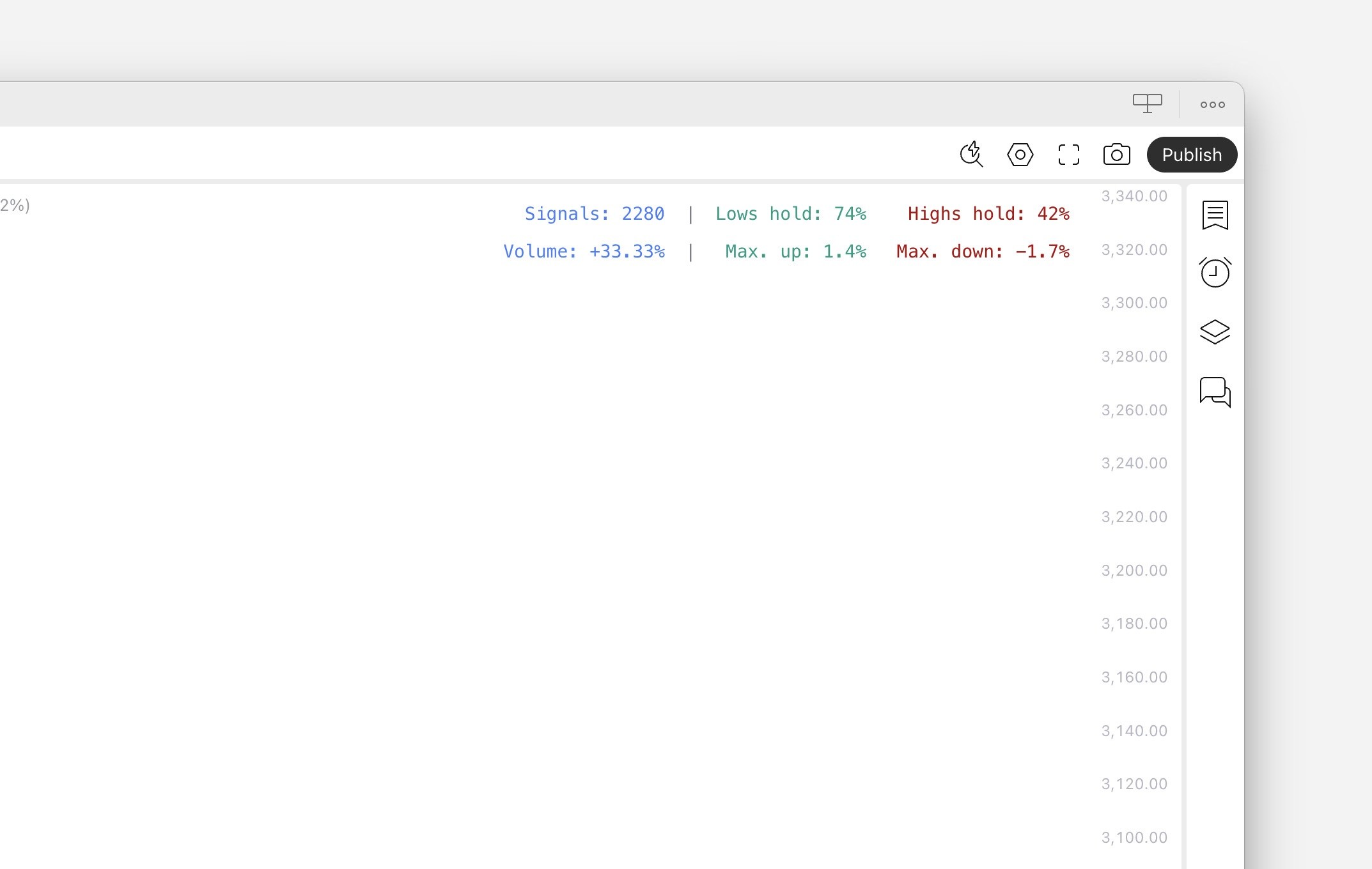
Previewing signals will also reveal real-time backtest metrics that measure historical volume and price impact for the signal. More on that in the next section.

If everything seems right, just click "Apply" to save the changes.
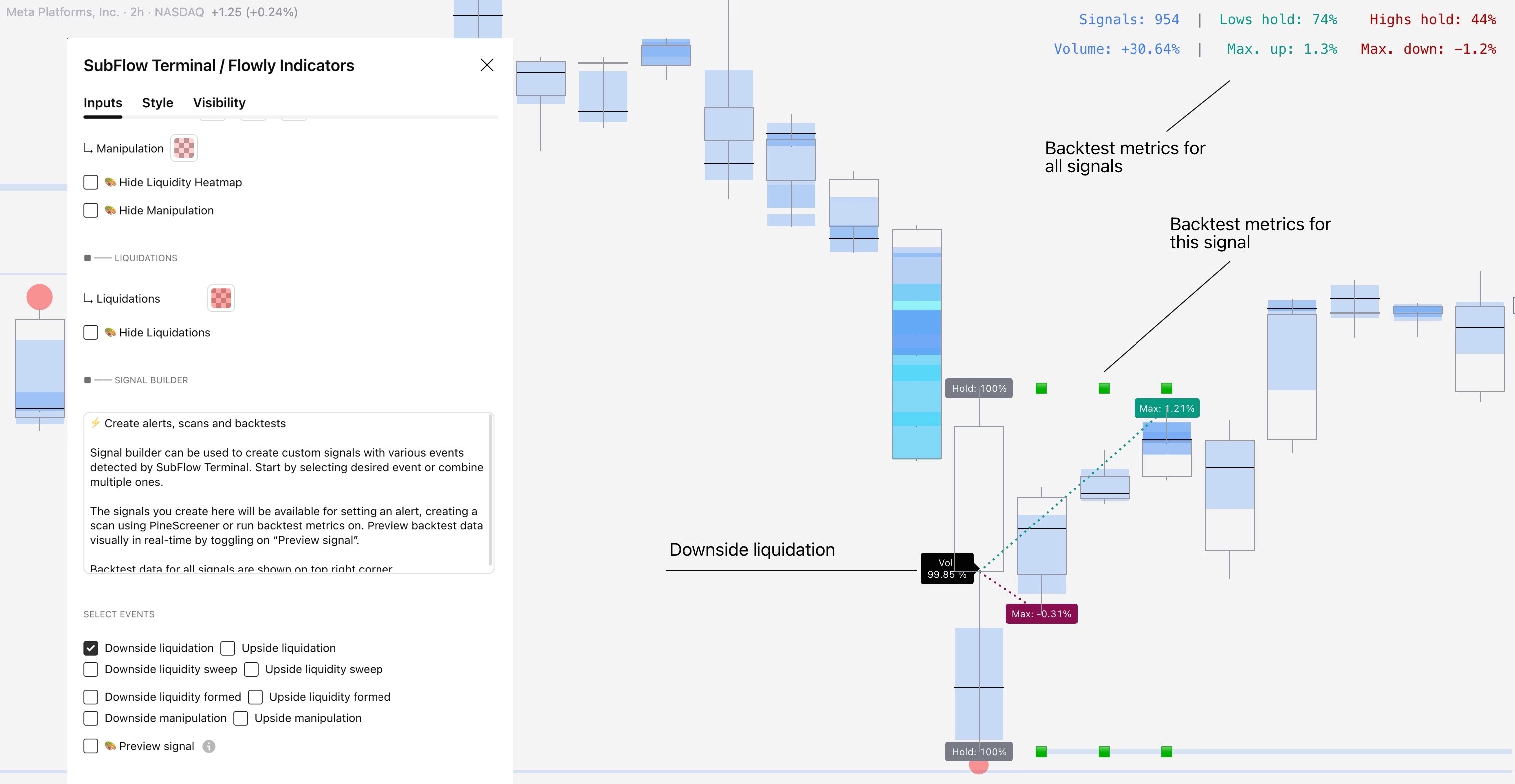

Illustration showing how to select conditions for a backtest in SubFlow Terminal indicator.

Building an alert in SubFlow Terminal

SubFlow Terminal let’s us build a custom signal using any single volume event available or combining multiple into one which can be used for alerts.

Currently available events are liquidations, liquidity pool sweeps, liquidity pool detected and manipulation.

We can visually preview the signals to see where alerts will trigger by selecting "Preview signal".

Previewing signals will also reveal real-time backtest metrics that measure historical volume and price impact for the signal. More on that in the next section.

If everything seems right, just click "Apply" to save the changes.


Illustration showing how to select conditions for a backtest in SubFlow Terminal indicator.

Setting an alert on TradingView

Once we have defined the conditions for the signal we wish to get notified on, we have to enable the actual alert for it.

Let's do this by going to indicator settings and choosing “Create alert” in the menu.
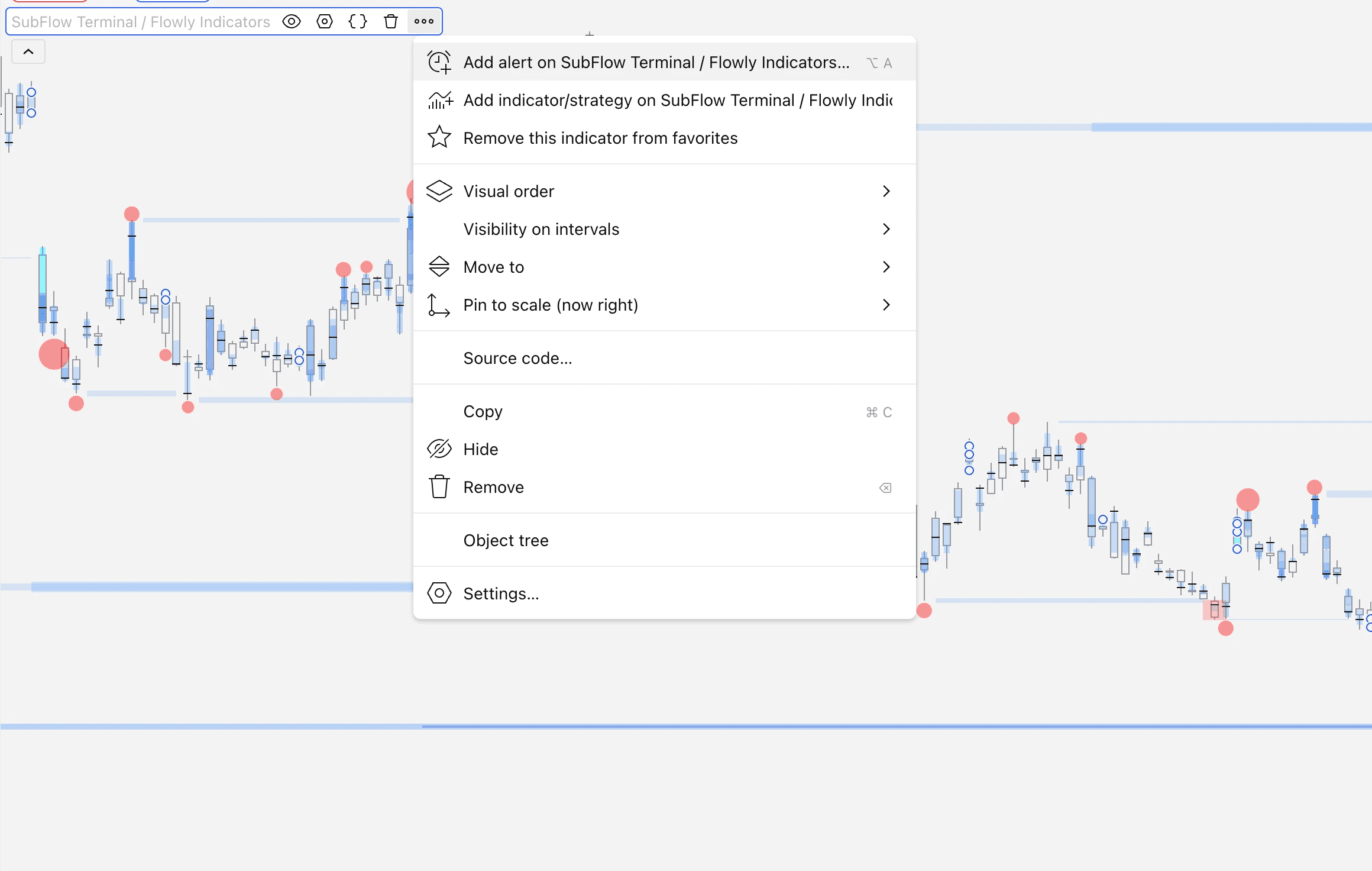

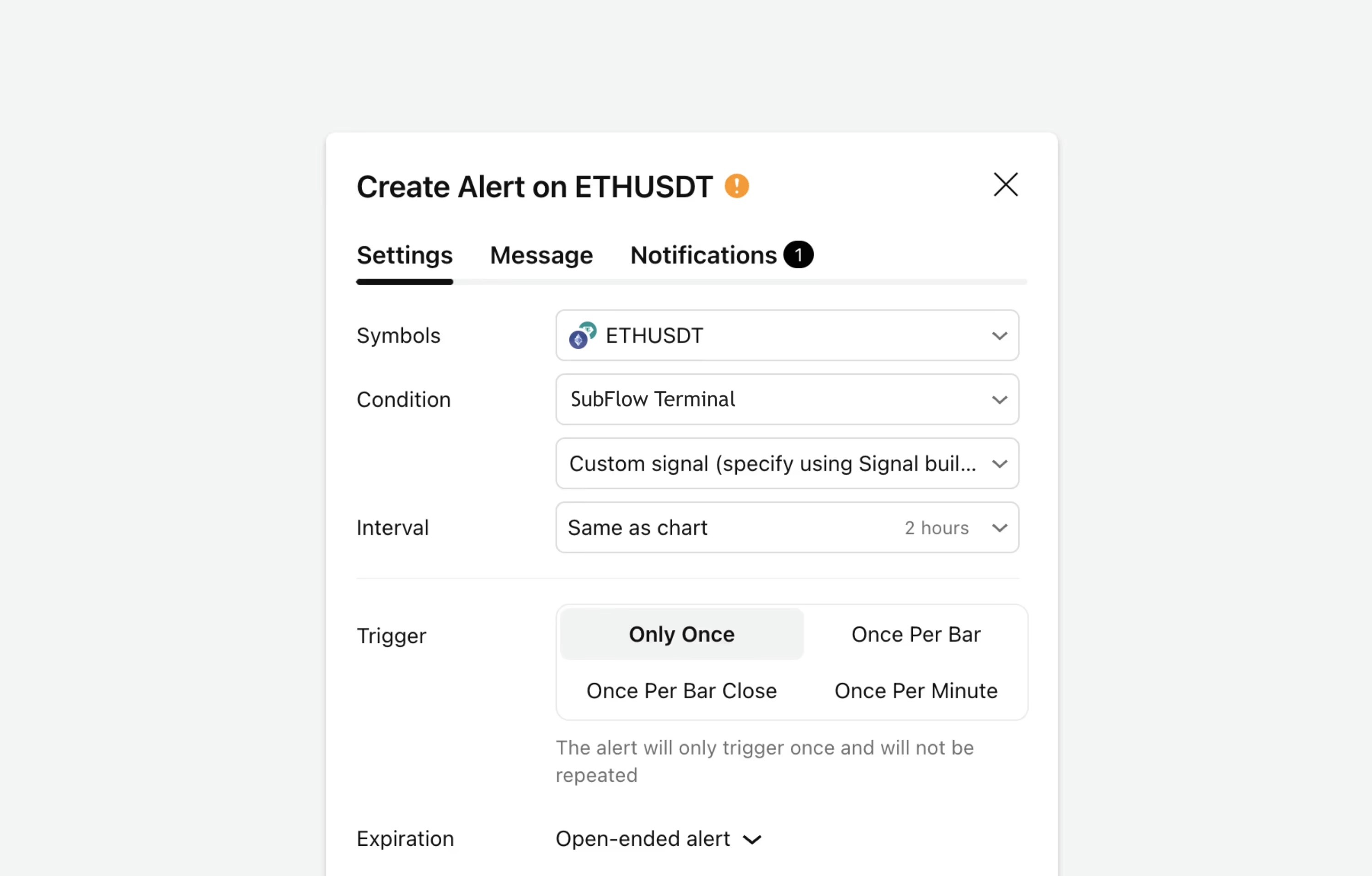
Illustration showing how to enable an alert using SubFlow Terminal indicator.

This opens the alert menu, where we can set a name and description for the alert. Click “Create” to enable the alert.
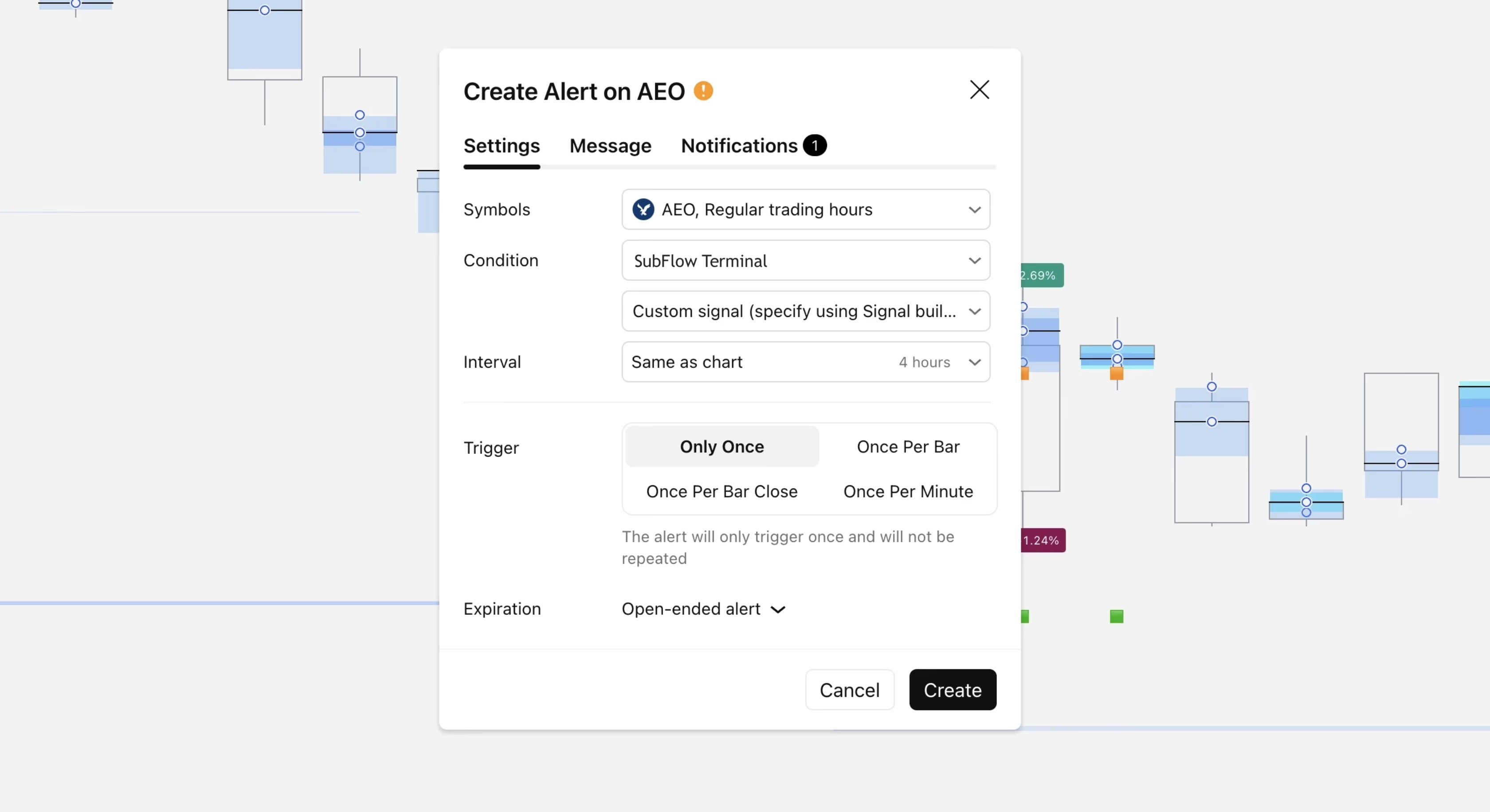

Illustration showing how to confirm and set an alert using SubFlow Terminal indicator.

Whenever the signal specified for the alert is detected, you’ll receive a pop-up message on TradingView and an email containing the alert information.

Like mentioned, signals can also be used to create backtests to analyze historical signal performance as well as market scans to automate finding opportunities. Find more information here 👇

Setting an alert on TradingView

Once we have defined the conditions for the signal we wish to get notified on, we have to enable the actual alert for it.

Let's do this by going to indicator settings and choosing “Create alert” in the menu.


Illustration showing how to enable an alert using SubFlow Terminal indicator.

This opens the alert menu, where we can set a name and description for the alert. Click “Create” to enable the alert.


Illustration showing how to confirm and set an alert using SubFlow Terminal indicator.

Whenever the signal specified for the alert is detected, you’ll receive a pop-up message on TradingView and an email containing the alert information.

Like mentioned, signals can also be used to create backtests to analyze historical signal performance as well as market scans to automate finding opportunities. Find more information here 👇

We got notified you're a fast learner 💪

Now you know how alerts work in SubFlow Terminal.

They're very convenient for monitoring key changes in markets without sitting in front of the charts all day. Just keep your phone with you and go live your life.

Make sure to take a look at all the other SubFlow Terminal lessons too, we assure you it's worth it 👇
We got notified you're a fast learner 💪

Now you know how alerts work in SubFlow Terminal.

They're very convenient for monitoring key changes in markets without sitting in front of the charts all day. Just keep your phone with you and go live your life.

Make sure to take a look at all the other SubFlow Terminal lessons too, we assure you it's worth it 👇
Learn SubFlow Terminal

Learn SubFlow Terminal

Practical guides for trading flows

Practical guides for trading flows

🤖

🤖

Indicators

Indicators

TradingView Indicators

TradingView Indicators

Flowly Indicators

See through trading charts with orderflow

hello@flowly.tools

Disclaimer

We are an independent script vendor on TradingView and have no affiliation with them. All content provided by us are strictly for educational purposes and should not be construed as financial advice.


Hypothetical or simulated performance shown does not represent actual trading and past results do not guarantee future performance. By using our content for decision making, you do it at your own risk and fully acknowledge that you alone are responsible for your own research and financial decisions.


© 2026 Flowly Indicators. All rights reserved.

Flowly Indicators

See through trading charts with orderflow

hello@flowly.tools

Disclaimer

We are an independent script vendor on TradingView and have no affiliation with them. All content provided by us are strictly for educational purposes and should not be construed as financial advice.


Hypothetical or simulated performance shown does not represent actual trading and past results do not guarantee future performance. By using our content for decision making, you do it at your own risk and fully acknowledge that you alone are responsible for your own research and financial decisions.


© 2026 Flowly Indicators. All rights reserved.

hello@flowly.tools

Disclaimer

We are an independent script vendor on TradingView and have no affiliation with them. All content provided by us are strictly for educational purposes and should not be construed as financial advice.


Hypothetical or simulated performance shown does not represent actual trading and past results do not guarantee future performance. By using our content for decision making, you do it at your own risk and fully acknowledge that you alone are responsible for your own research and financial decisions.


© 2026 Flowly Indicators. All rights reserved.

quantify.tools is now Flowly Indicators. Read announcement