
AI summary

AI summary

AI summary

This SubFlow Terminal guide walks through setting up SubFlow Terminal on TradingView, including adding it to your chart, styling preferences and optimizing timeframe settings. Setup takes just a few clicks.

This SubFlow Terminal guide walks through setting up SubFlow Terminal on TradingView, including adding it to your chart, styling preferences and optimizing timeframe settings. Setup takes just a few clicks.

This SubFlow Terminal guide walks through setting up SubFlow Terminal on TradingView, including adding it to your chart, styling preferences and optimizing timeframe settings. Setup takes just a few clicks.

How to set up SubFlow Terminal

How to set up SubFlow Terminal

How to set up SubFlow Terminal

Set up SubFlow Terminal in a breeze with just few clicks

Set up SubFlow Terminal in a breeze with just few clicks

Set up SubFlow Terminal in a breeze with just few clicks

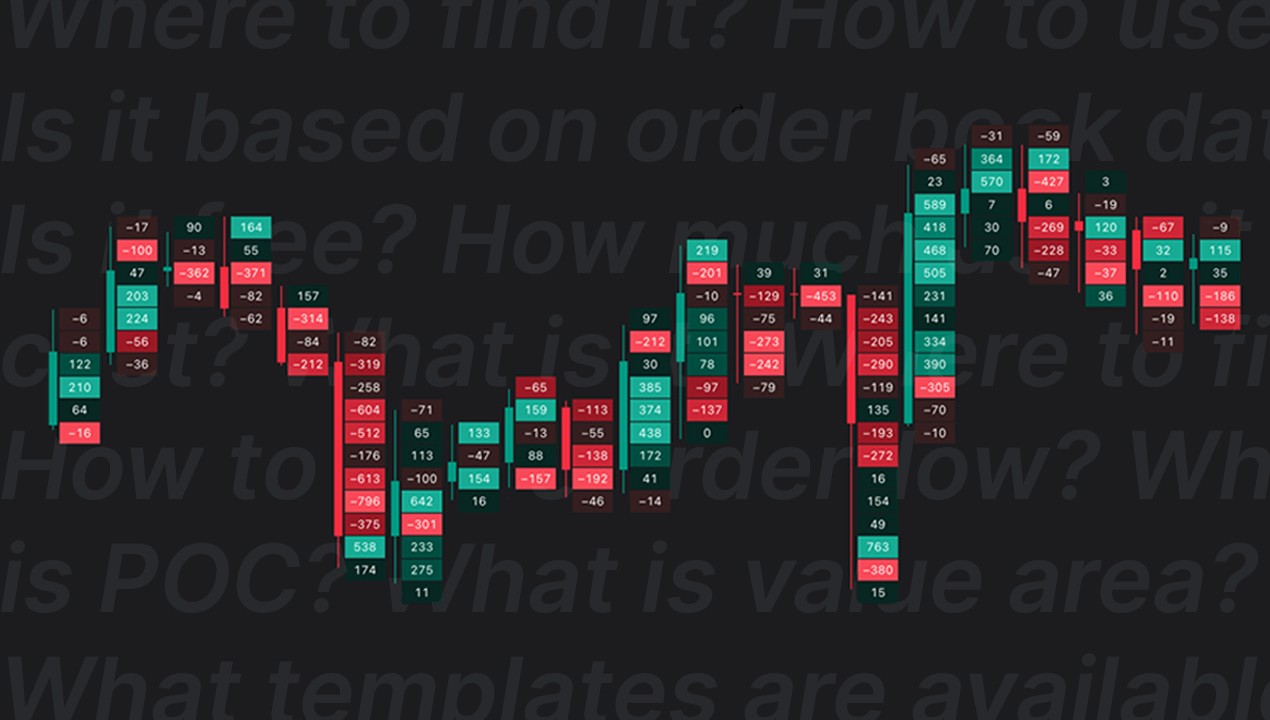
Main image for the guide "How to set up SubFlow Terminal"

Flowly Team

Flowly Team

Jan 26, 2026

Jan 26, 2026

2 min read

2 min read

Share

Questions about SubFlow Terminal?

Questions about SubFlow Terminal?

Chat with us

Chat with us

Set up SubFlow Terminal in few clicks

SubFlow Terminal is immediately available for use on TradingView after purchase and can be set up in just a few clicks. Simply add to your chart and start using.

In this guide we will uncover where to find it, how to style your chart to make it pop and optimize it for your TradingView plan.

Set up SubFlow Terminal in few clicks

SubFlow Terminal is immediately available for use on TradingView after purchase and can be set up in just a few clicks. Simply add to your chart and start using.

In this guide we will uncover where to find it, how to style your chart to make it pop and optimize it for your TradingView plan.

In this article

In this article

In this article

Find SubFlow Terminal on TradingView

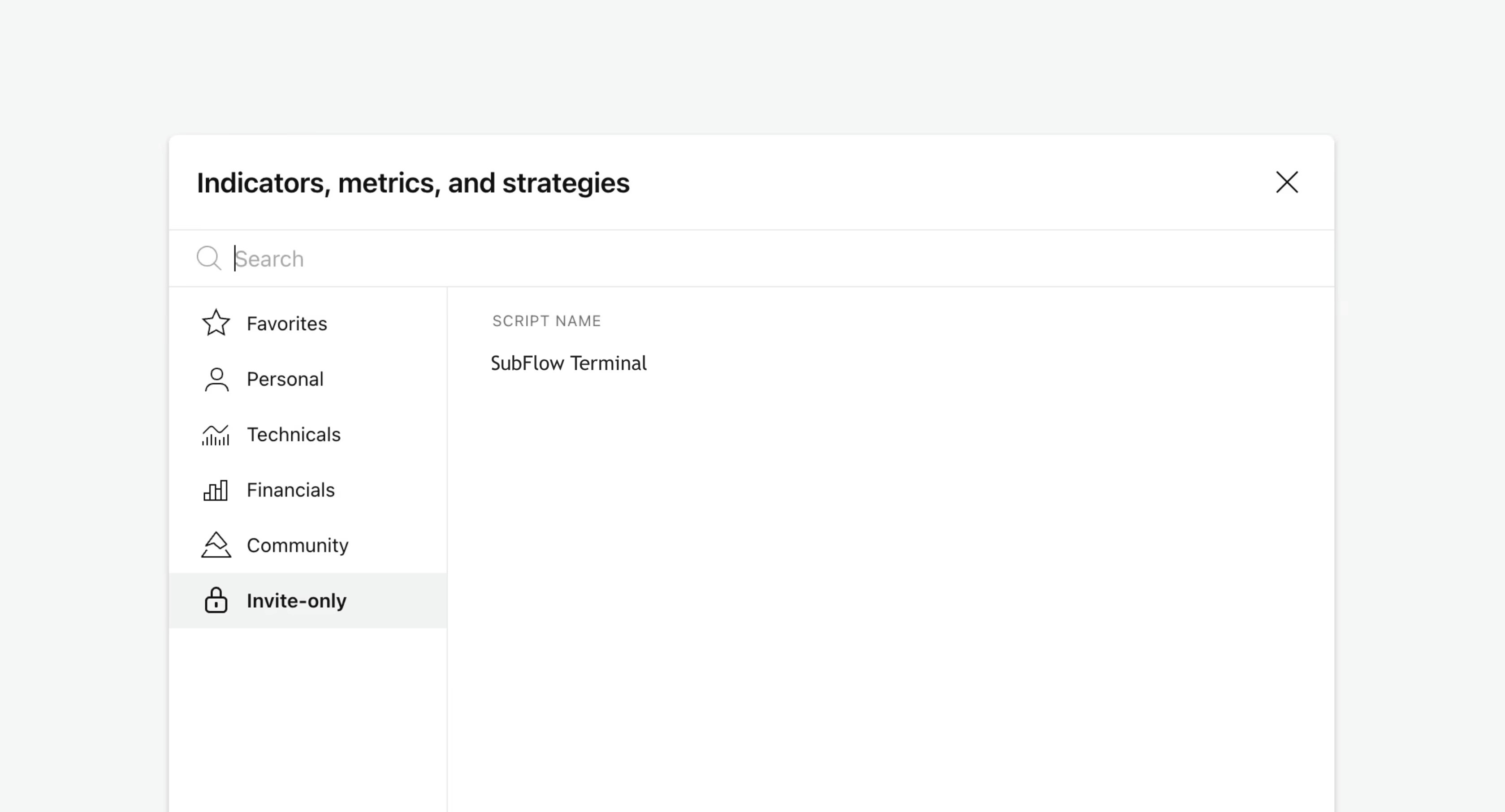
SubFlow Terminal can be found in "Invite-only scripts" under Indicators tab on TradingView.

Start by opening any chart on TradingView and clicking "Indicators" on top menu.
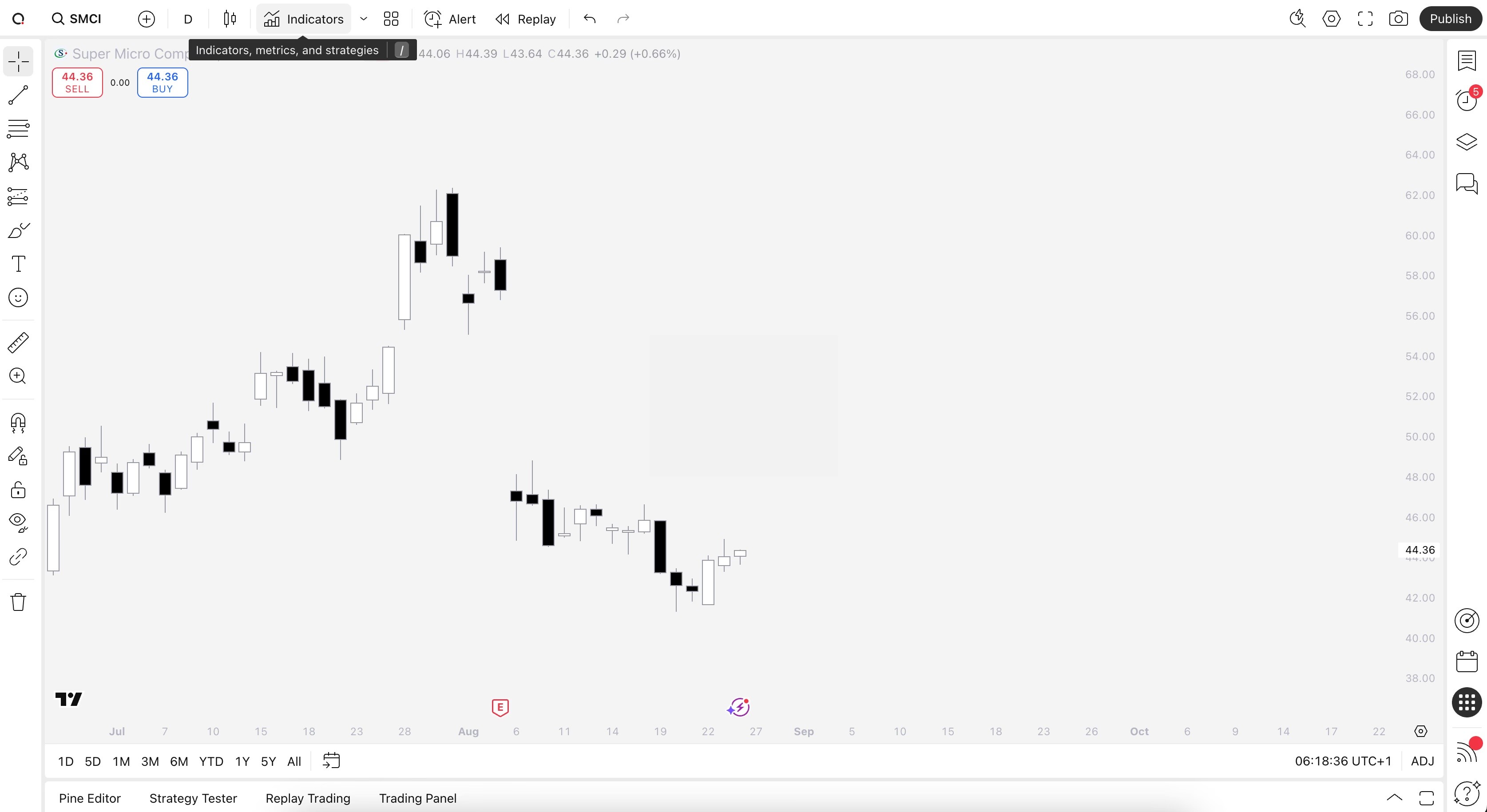

Illustration showing how to find indicators on TradingView.

With Indicators tab open, head to Invite-only tab where you will find SubFlow Terminal. Add SubFlow Terminal to your chart by simply clicking on it.

Make sure to also click the star icon next to SubFlow Terminal to favorite it and get notified on new updates
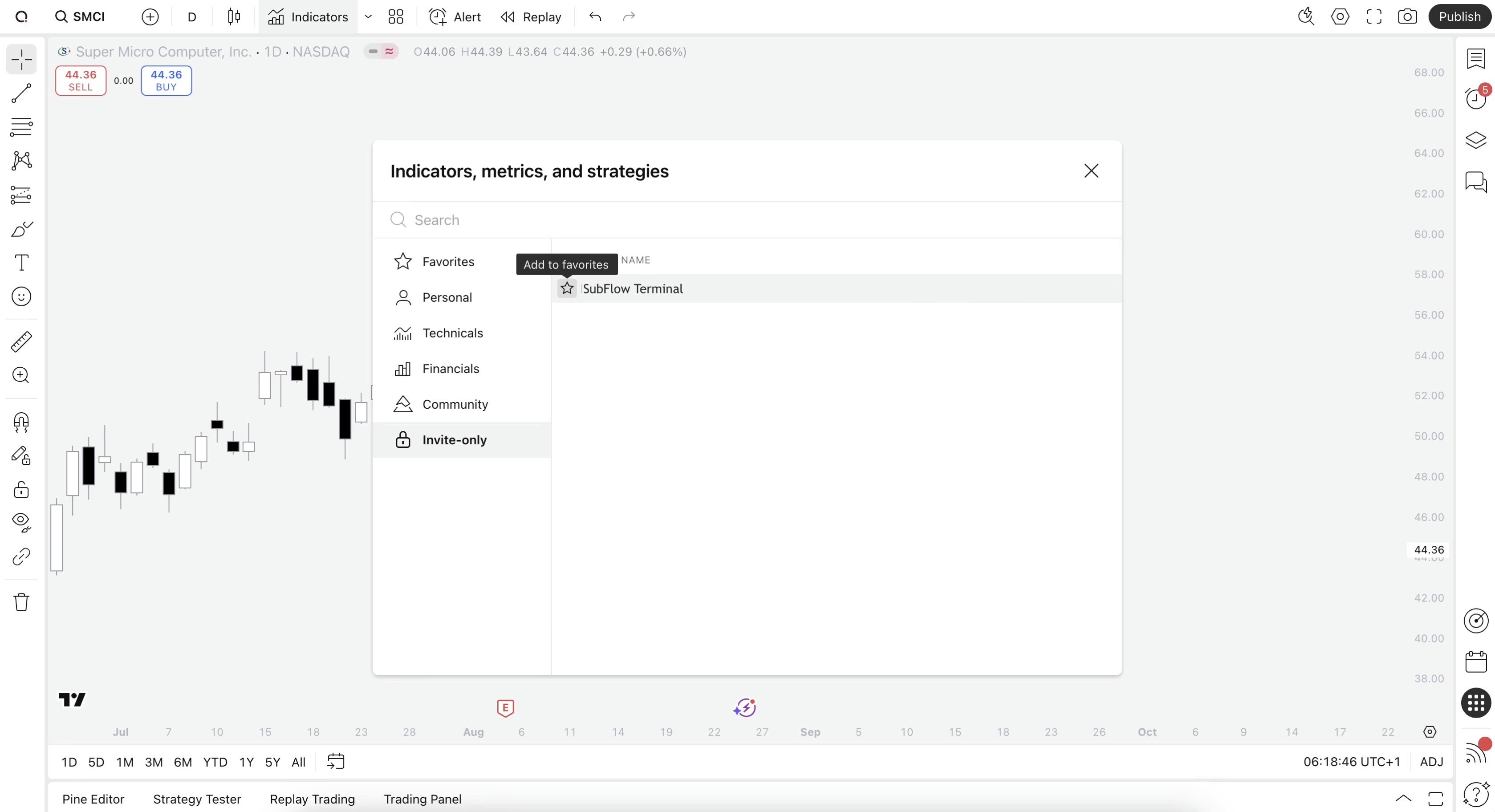

Illustration showing how to favorite indicators on TradingView.

Find SubFlow Terminal on TradingView

SubFlow Terminal can be found in "Invite-only scripts" under Indicators tab on TradingView.

Start by opening any chart on TradingView and clicking "Indicators" on top menu.


Illustration showing how to find indicators on TradingView.

With Indicators tab open, head to Invite-only tab where you will find SubFlow Terminal. Add SubFlow Terminal to your chart by simply clicking on it.

Make sure to also click the star icon next to SubFlow Terminal to favorite it and get notified on new updates


Illustration showing how to favorite indicators on TradingView.

Style chart for SubFlow Terminal

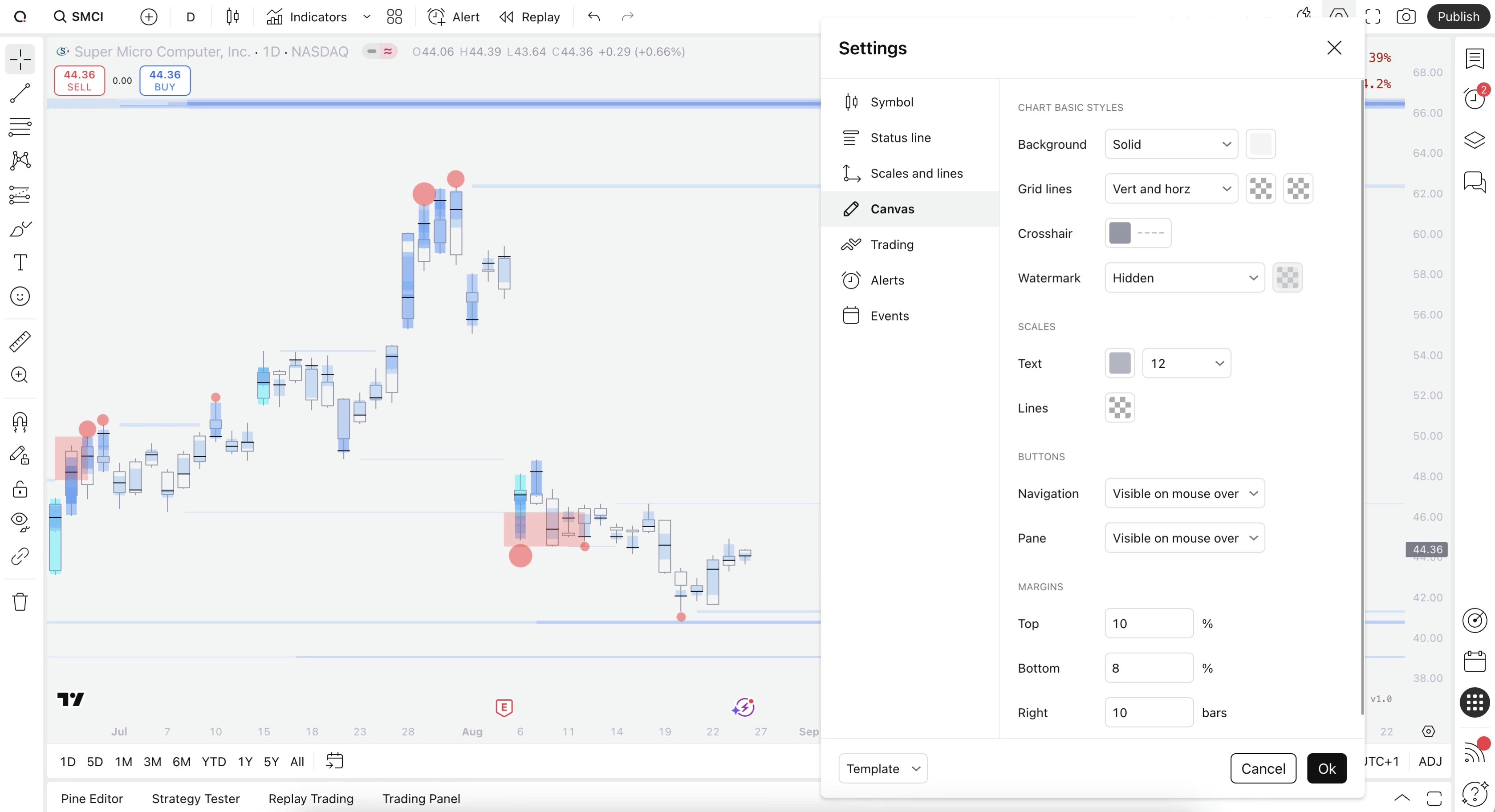
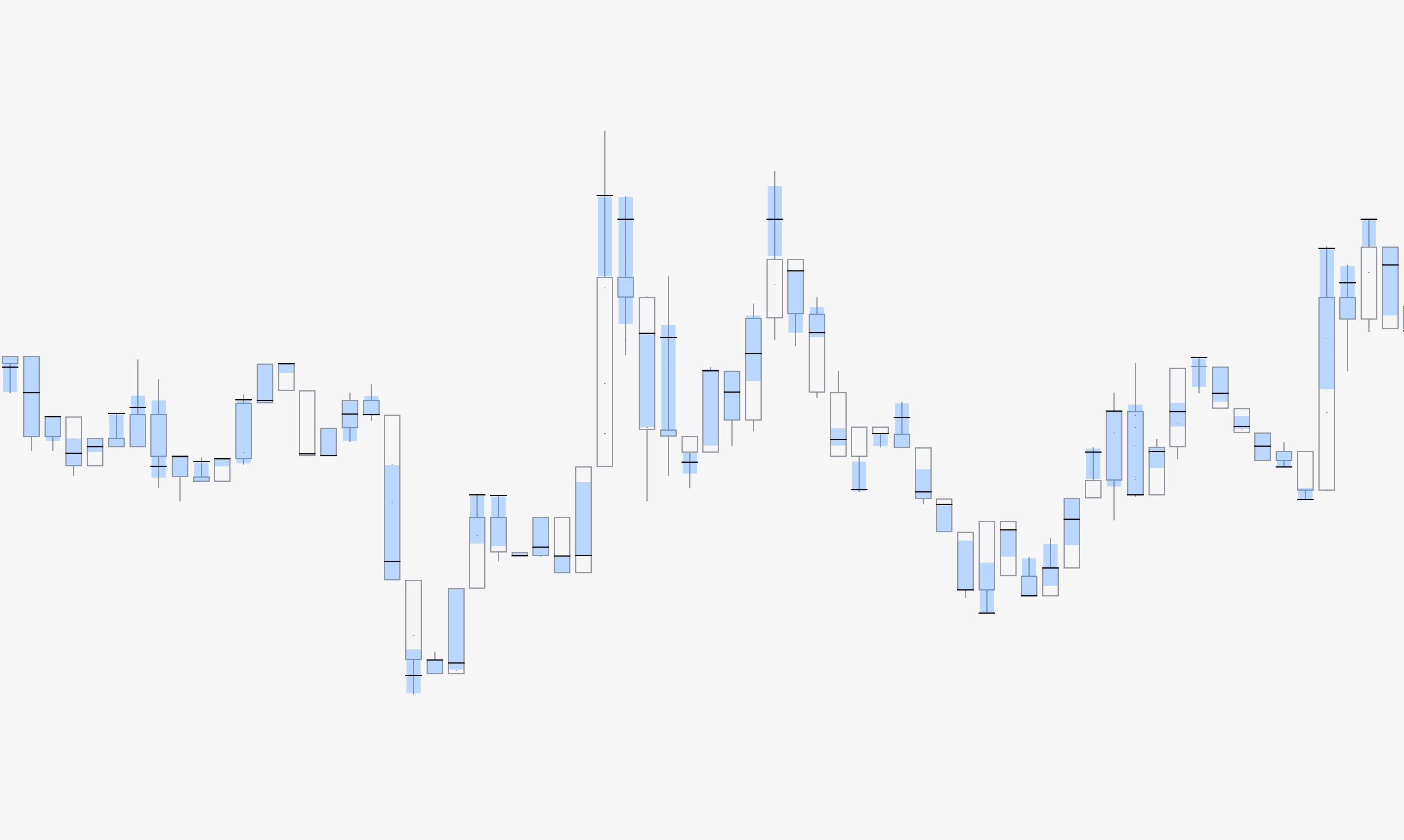
While all colors on SubFlow Terminal are fully customizable, the default visuals stick out best against white backgrounds. Feel free to copy our template for a similar look.

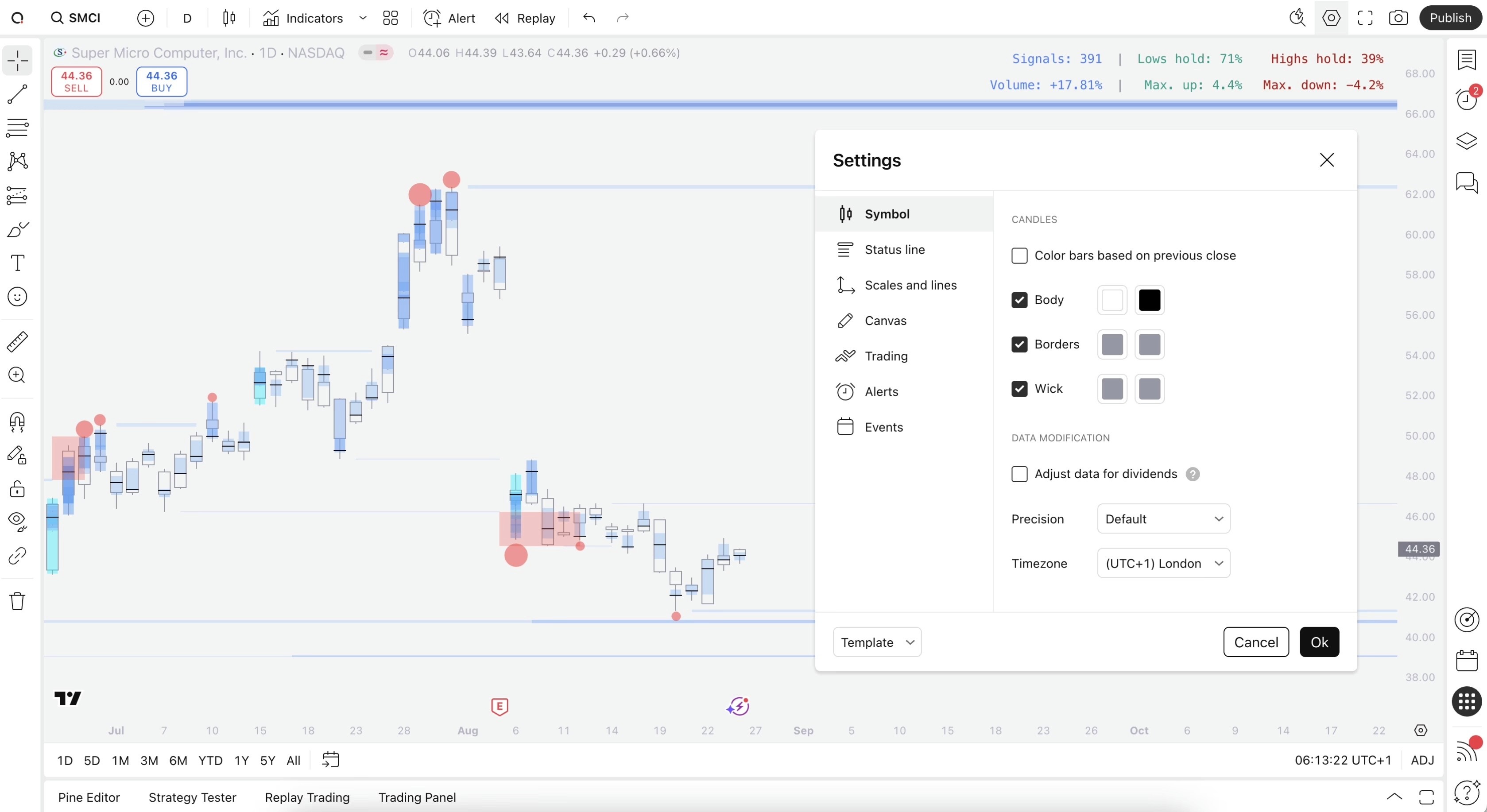
Chart settings can be found by right clicking anywhere on the chart and selecting "Settings".


Candle borders and wick

#9598a1


Illustration showing optimal candle style for SubFlow Terminal indicator


Background color

#f4f4f4


Illustration showing optimal chart style for SubFlow Terminal indicator

Style chart for SubFlow Terminal

While all colors on SubFlow Terminal are fully customizable, the default visuals stick out best against white backgrounds. Feel free to copy our template for a similar look.

Chart settings can be found by right clicking anywhere on the chart and selecting "Settings".


Candle borders and wick

#9598a1


Illustration showing optimal candle style for SubFlow Terminal indicator


Background color

#f4f4f4


Illustration showing optimal chart style for SubFlow Terminal indicator

Optimize SubFlow Terminal calculations

While SubFlow Terminal can be used on any TradingView plan, including free plan, users with a paid plan can leverage more accurate orderflow calculations for SubFlow Terminal.

Enable this setting by heading to SubFlow Terminal settings and toggling "I have Premium plan".
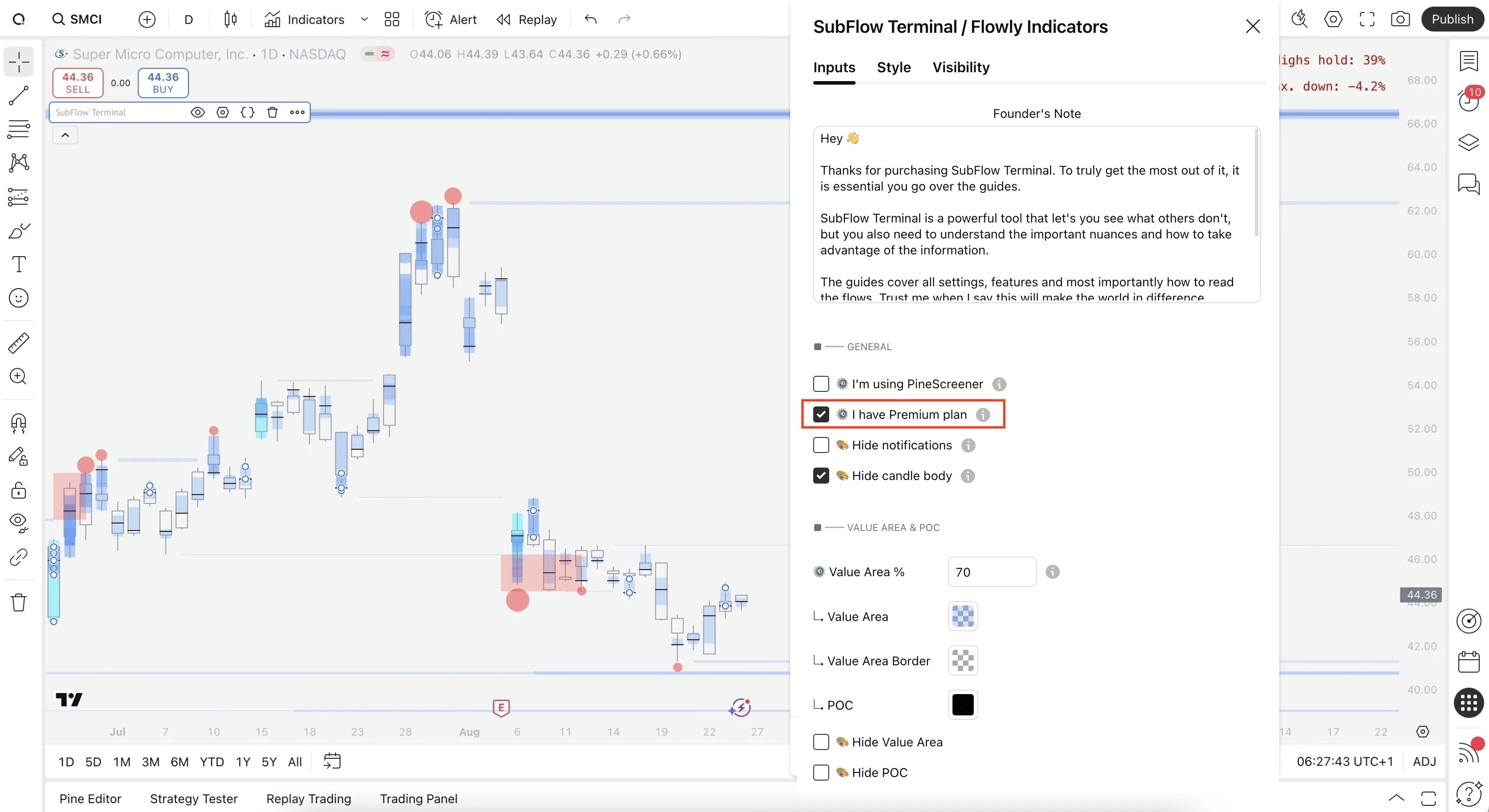

Illustration showing how to enable most accurate available data for SubFlow Terminal indicator

Optimize SubFlow Terminal calculations

While SubFlow Terminal can be used on any TradingView plan, including free plan, users with a paid plan can leverage more accurate orderflow calculations for SubFlow Terminal.

Enable this setting by heading to SubFlow Terminal settings and toggling "I have Premium plan".


Illustration showing how to enable most accurate available data for SubFlow Terminal indicator

Internal Flow in stock market

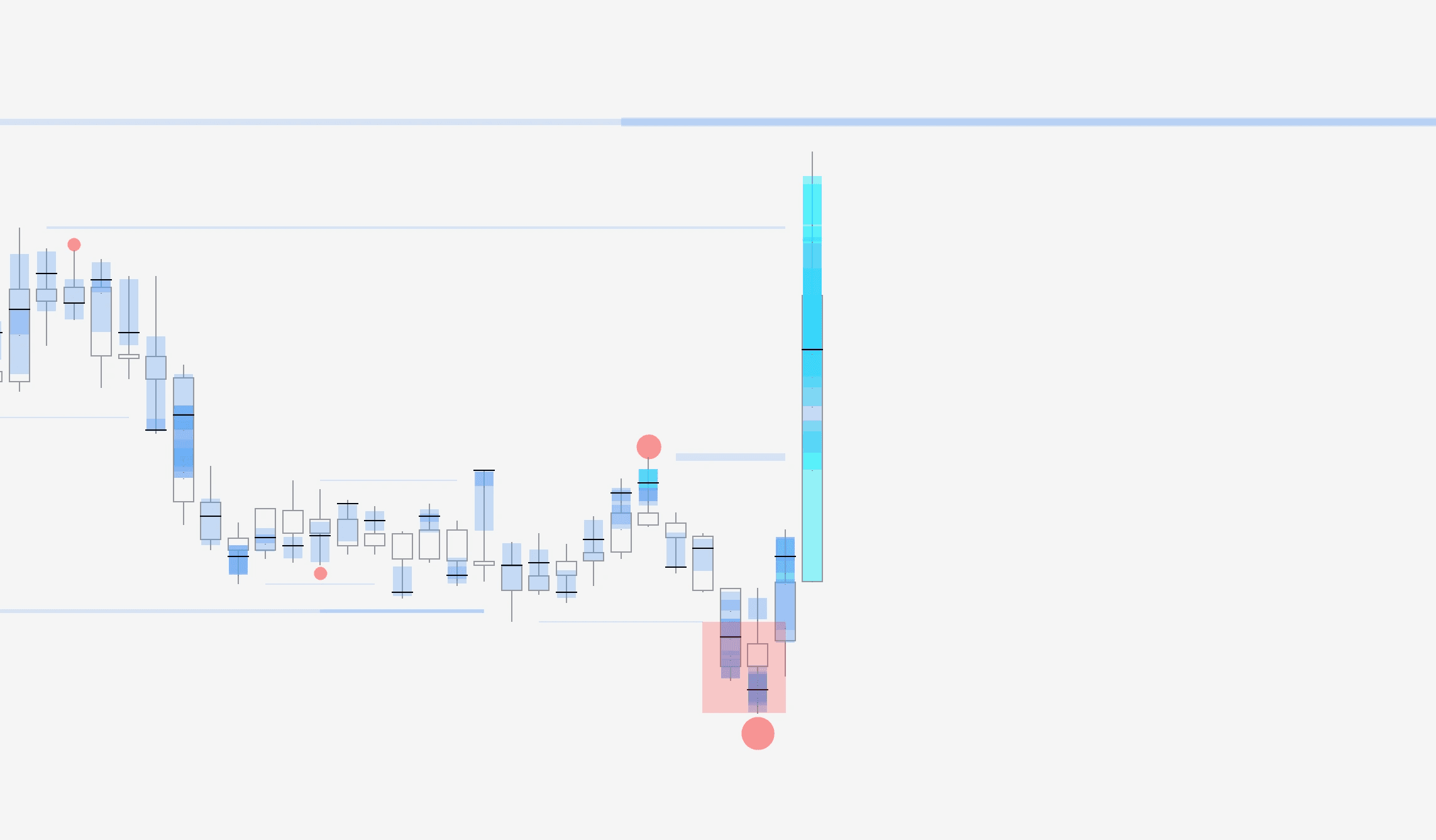
By default, TradingView displays stock market charts only for regular trading hours (when stock market is open).

This means Internal Flow will not have access to all volume data available beyond regular trading hours to determine what "unusual volume" means.

On lower timeframe charts, this leads to sparse and inaccurate data.
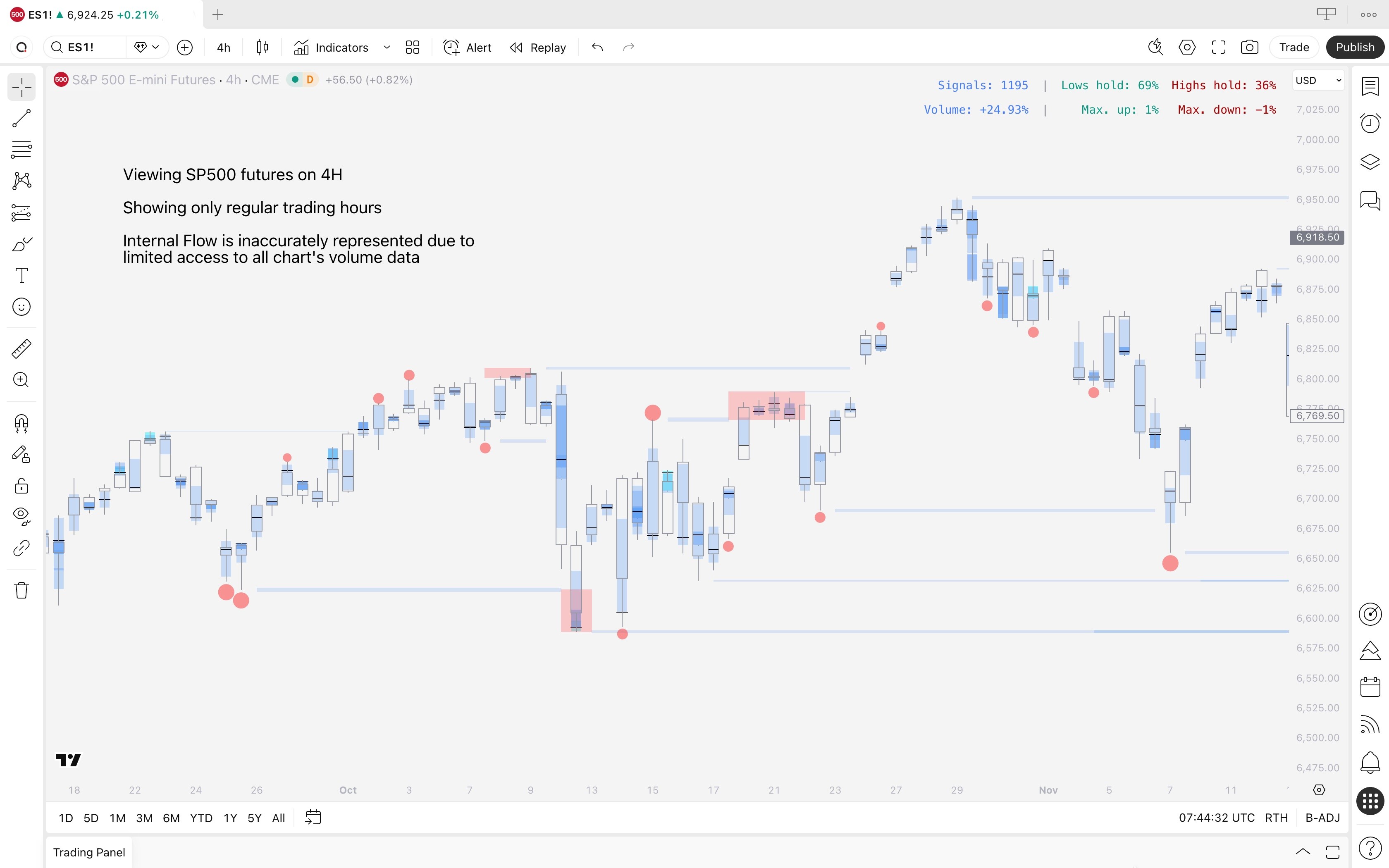

Illustration of inaccurate Internal Flow data in SubFlow Terminal when using regular trading hours on stock market charts.

Switching to electronic trading hours

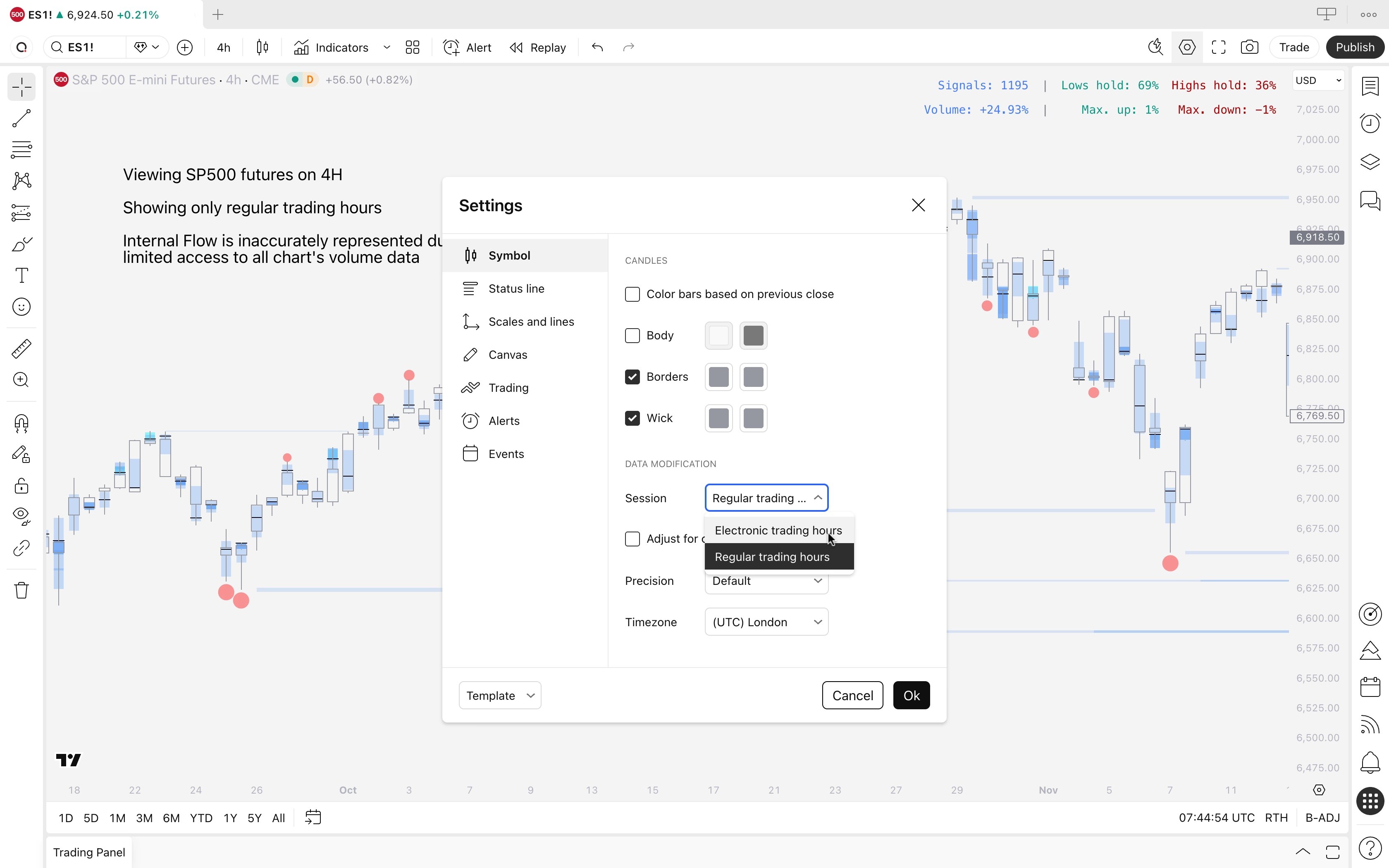
Internal Flow will work properly once we switch "Regular trading hours" to "Electronic trading hours" on TradingView's chart settings.

  1. Open any stock chart, right click canvas and select Settings

  2. Navigate to "Data modification" under Symbol tab

  3. Select "Electronic trading hours"

  4. Click "Ok"


Illustration of changing regular trading hours to electronic trading hours on TradingView

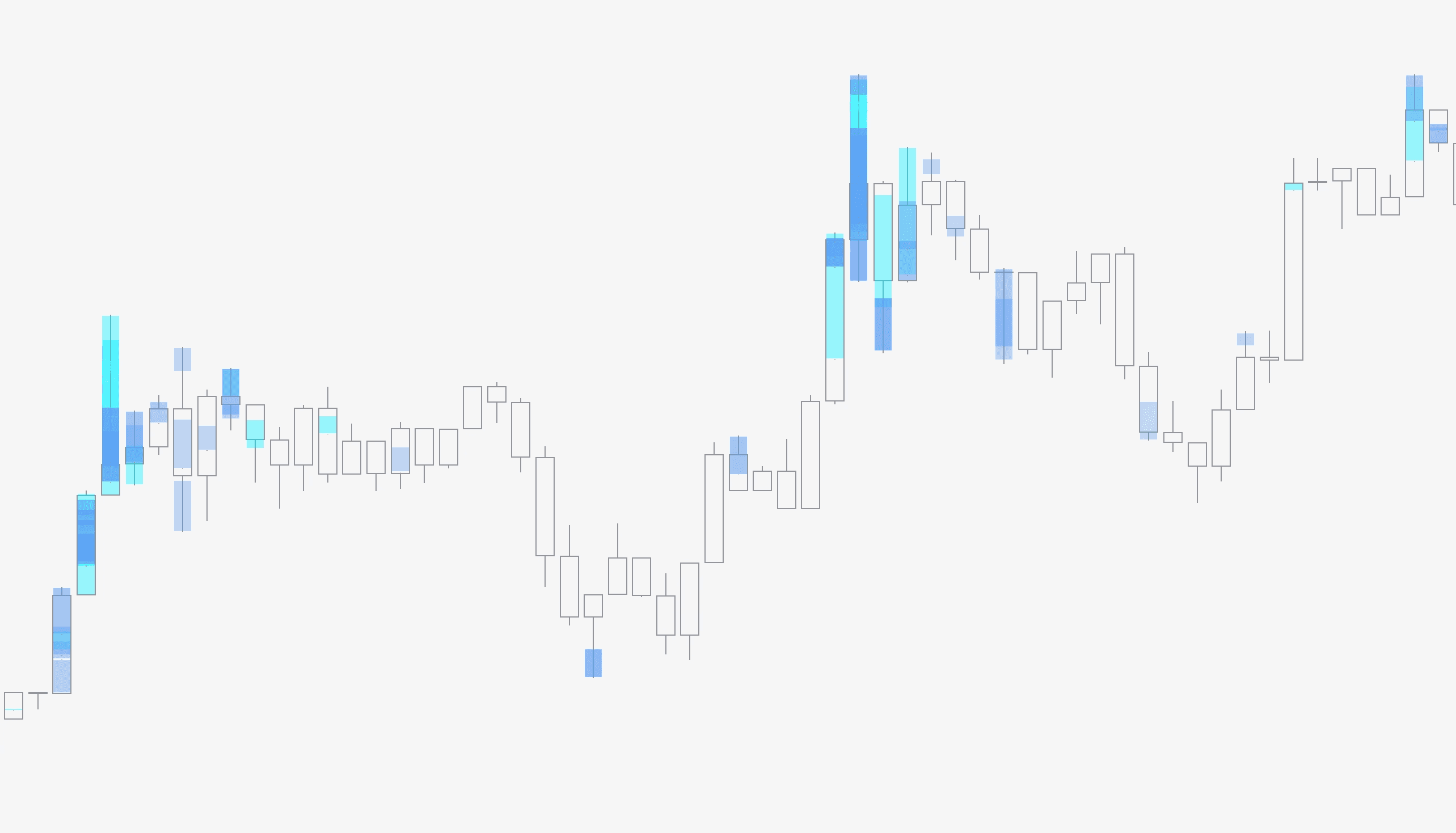
Internal Flow now has access to all volume data on the stock market chart and is represented accurately.
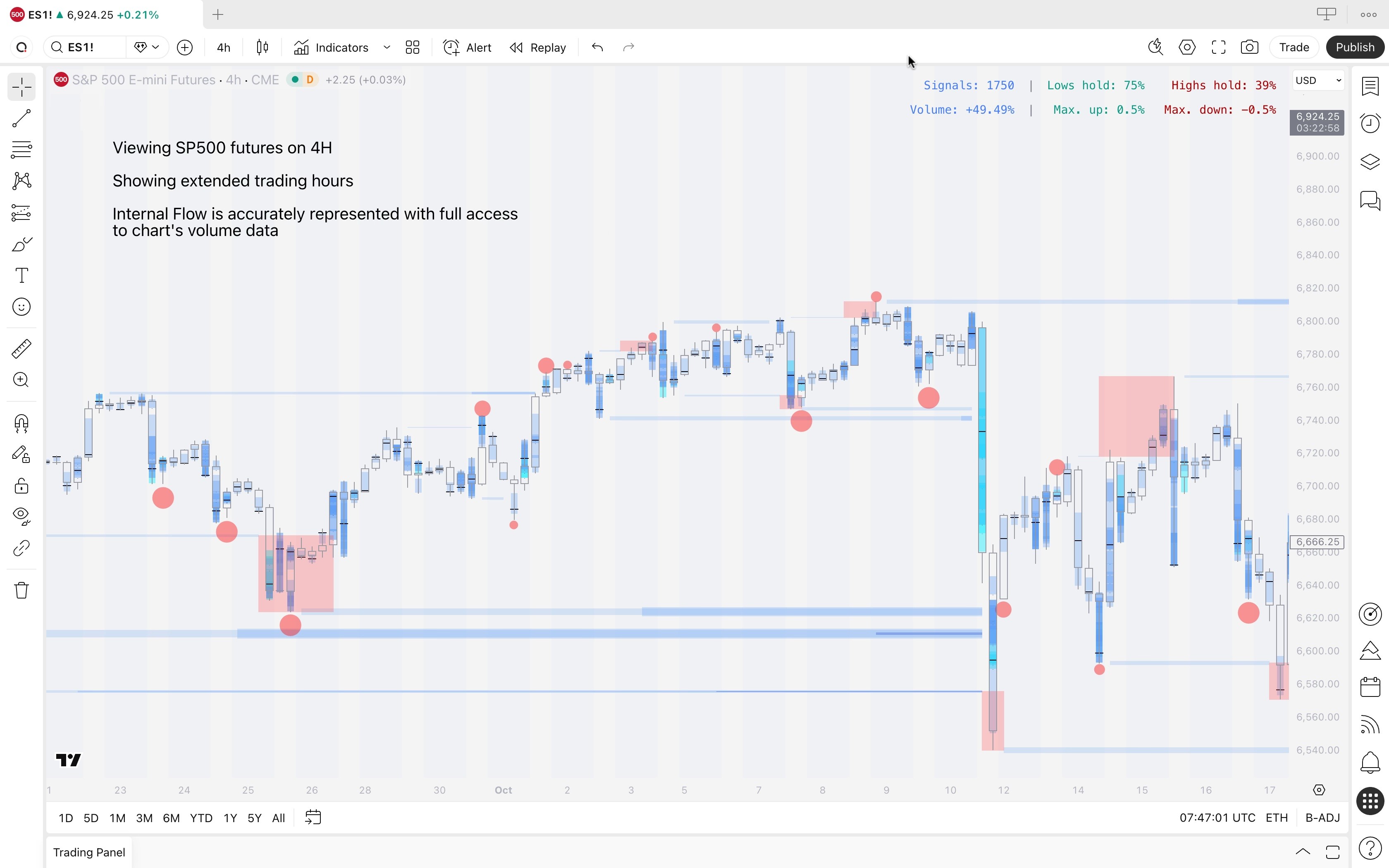

Illustration of accurate Internal Flow data in SubFlow Terminal when using extended trading hours on stock market charts.

Internal Flow in stock market

By default, TradingView displays stock market charts only for regular trading hours (when stock market is open).

This means Internal Flow will not have access to all volume data available beyond regular trading hours to determine what "unusual volume" means.

On lower timeframe charts, this leads to sparse and inaccurate data.


Illustration of inaccurate Internal Flow data in SubFlow Terminal when using regular trading hours on stock market charts.

Switching to electronic trading hours

Internal Flow will work properly once we switch "Regular trading hours" to "Electronic trading hours" on TradingView's chart settings.

  1. Open any stock chart, right click canvas and select Settings

  2. Navigate to "Data modification" under Symbol tab

  3. Select "Electronic trading hours"

  4. Click "Ok"


Illustration of changing regular trading hours to electronic trading hours on TradingView

Internal Flow now has access to all volume data on the stock market chart and is represented accurately.


Illustration of accurate Internal Flow data in SubFlow Terminal when using extended trading hours on stock market charts.

You're ready to map the flows ๐Ÿฅณ

SubFlow Terminal is now all set, you may begin to map the flows and see what others are missing. Move onto other SubFlow Terminal lessons to learn how SubFlow Terminal works and how to trade it ๐Ÿ‘‡

You're ready to map the flows ๐Ÿฅณ

SubFlow Terminal is now all set, you may begin to map the flows and see what others are missing. Move onto other SubFlow Terminal lessons to learn how SubFlow Terminal works and how to trade it ๐Ÿ‘‡

Learn SubFlow Terminal

Learn SubFlow Terminal

Practical guides for trading flows

Practical guides for trading flows

๐Ÿค–

๐Ÿค–

Indicators

Indicators

TradingView Indicators

TradingView Indicators

Flowly Indicators

See through trading charts with orderflow

hello@flowly.tools

Disclaimer

We are an independent script vendor on TradingView and have no affiliation with them. All content provided by us are strictly for educational purposes and should not be construed as financial advice.


Hypothetical or simulated performance shown does not represent actual trading and past results do not guarantee future performance. By using our content for decision making, you do it at your own risk and fully acknowledge that you alone are responsible for your own research and financial decisions.


ยฉ 2026 Flowly Indicators. All rights reserved.

Flowly Indicators

See through trading charts with orderflow

hello@flowly.tools

Disclaimer

We are an independent script vendor on TradingView and have no affiliation with them. All content provided by us are strictly for educational purposes and should not be construed as financial advice.


Hypothetical or simulated performance shown does not represent actual trading and past results do not guarantee future performance. By using our content for decision making, you do it at your own risk and fully acknowledge that you alone are responsible for your own research and financial decisions.


ยฉ 2026 Flowly Indicators. All rights reserved.

hello@flowly.tools

Disclaimer

We are an independent script vendor on TradingView and have no affiliation with them. All content provided by us are strictly for educational purposes and should not be construed as financial advice.


Hypothetical or simulated performance shown does not represent actual trading and past results do not guarantee future performance. By using our content for decision making, you do it at your own risk and fully acknowledge that you alone are responsible for your own research and financial decisions.


ยฉ 2026 Flowly Indicators. All rights reserved.

quantify.tools is now Flowly Indicators. Read announcement